
Glass Power Tools
The machines you work on, in one list.
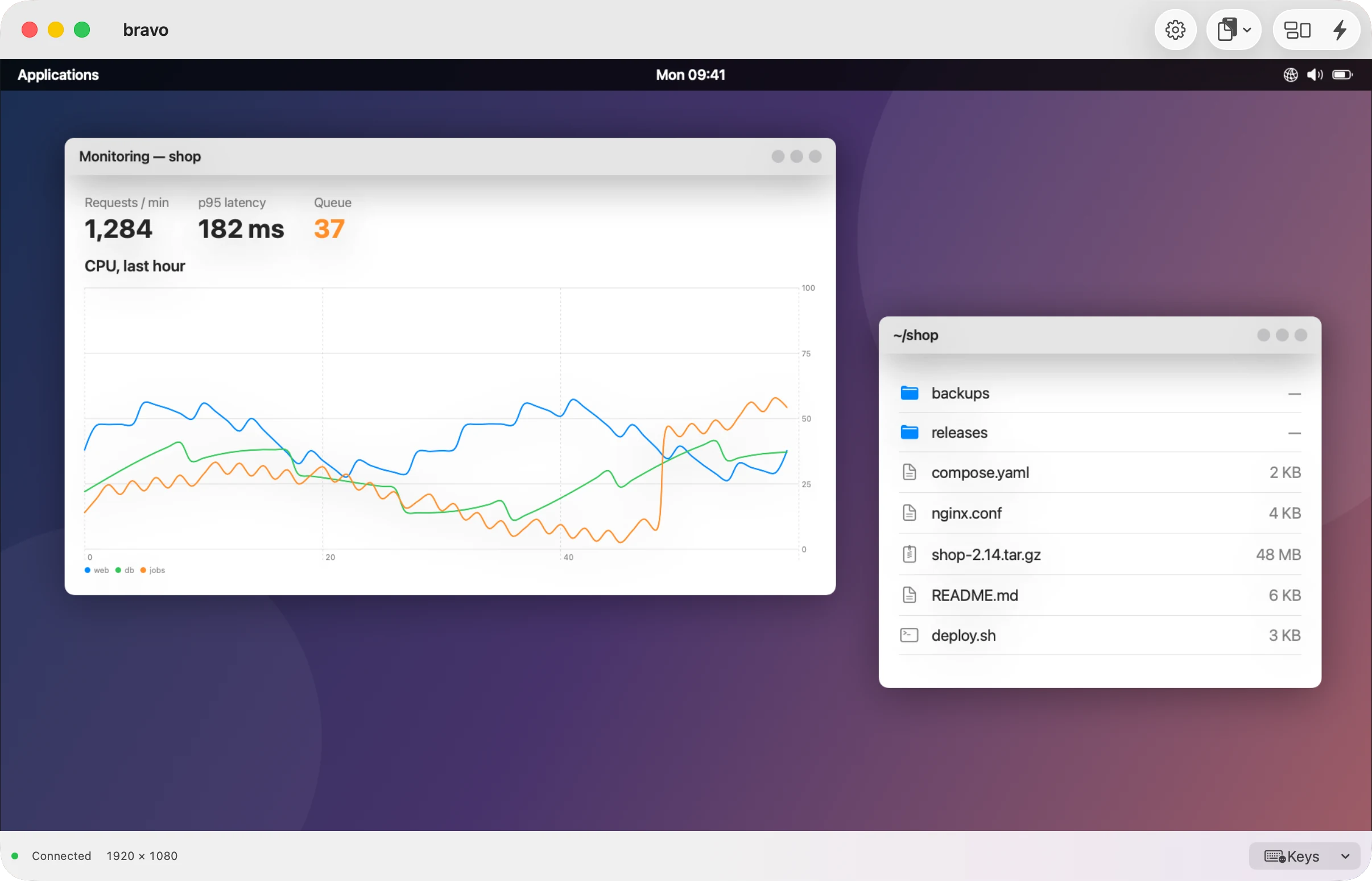
Terminals, databases, remote desktops and an editor, for Apple Vision Pro, Mac, iPad and iPhone. You add a machine once. Each machine lists its services, and Connect opens the one you want.
Mac 0.4.494, for macOS 26 on Apple silicon · iPhone, iPad and Vision Pro in testing · GPLv3 licence · nothing to sign up for · no analytics, no telemetry
Vision Pro first
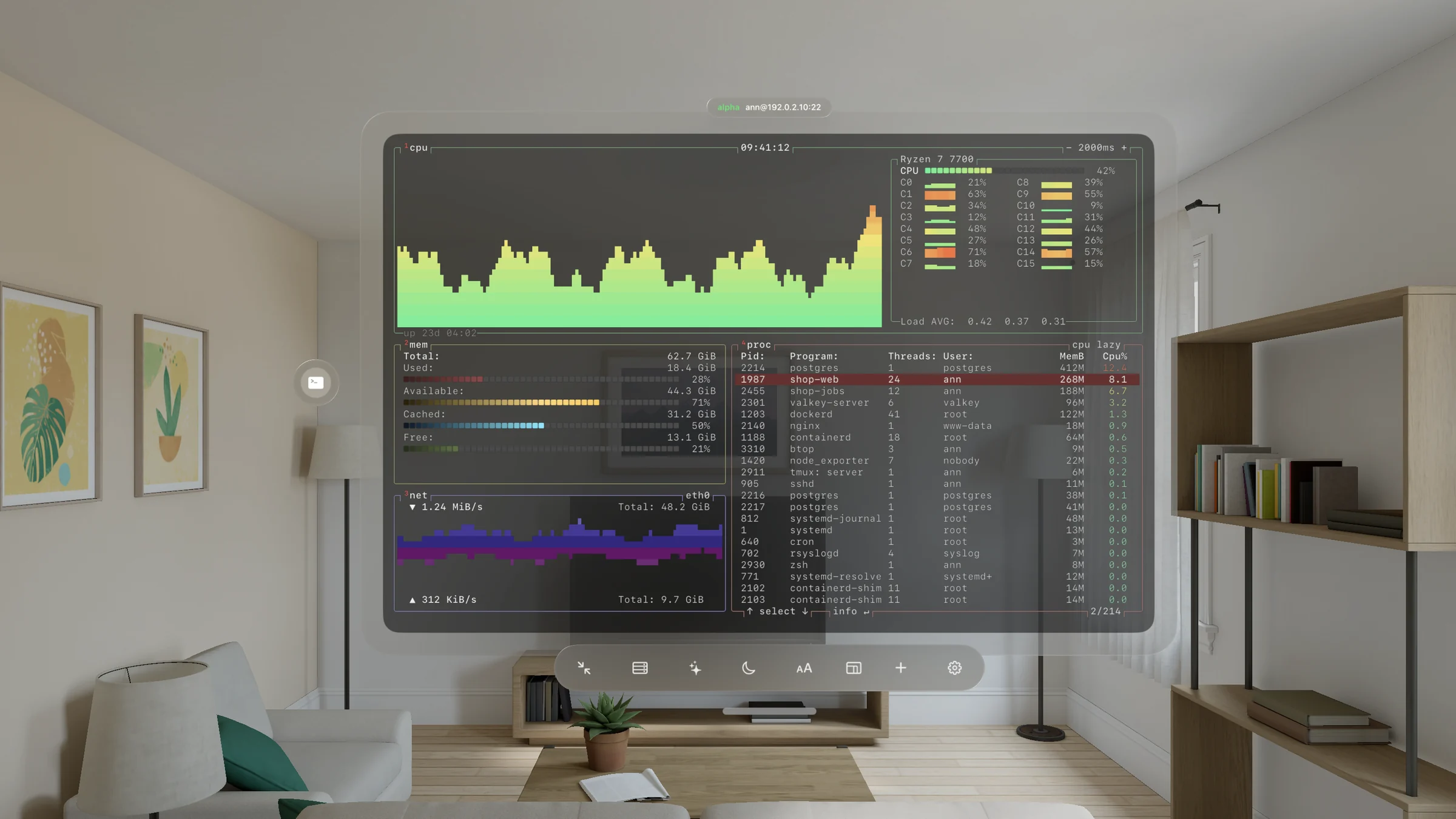
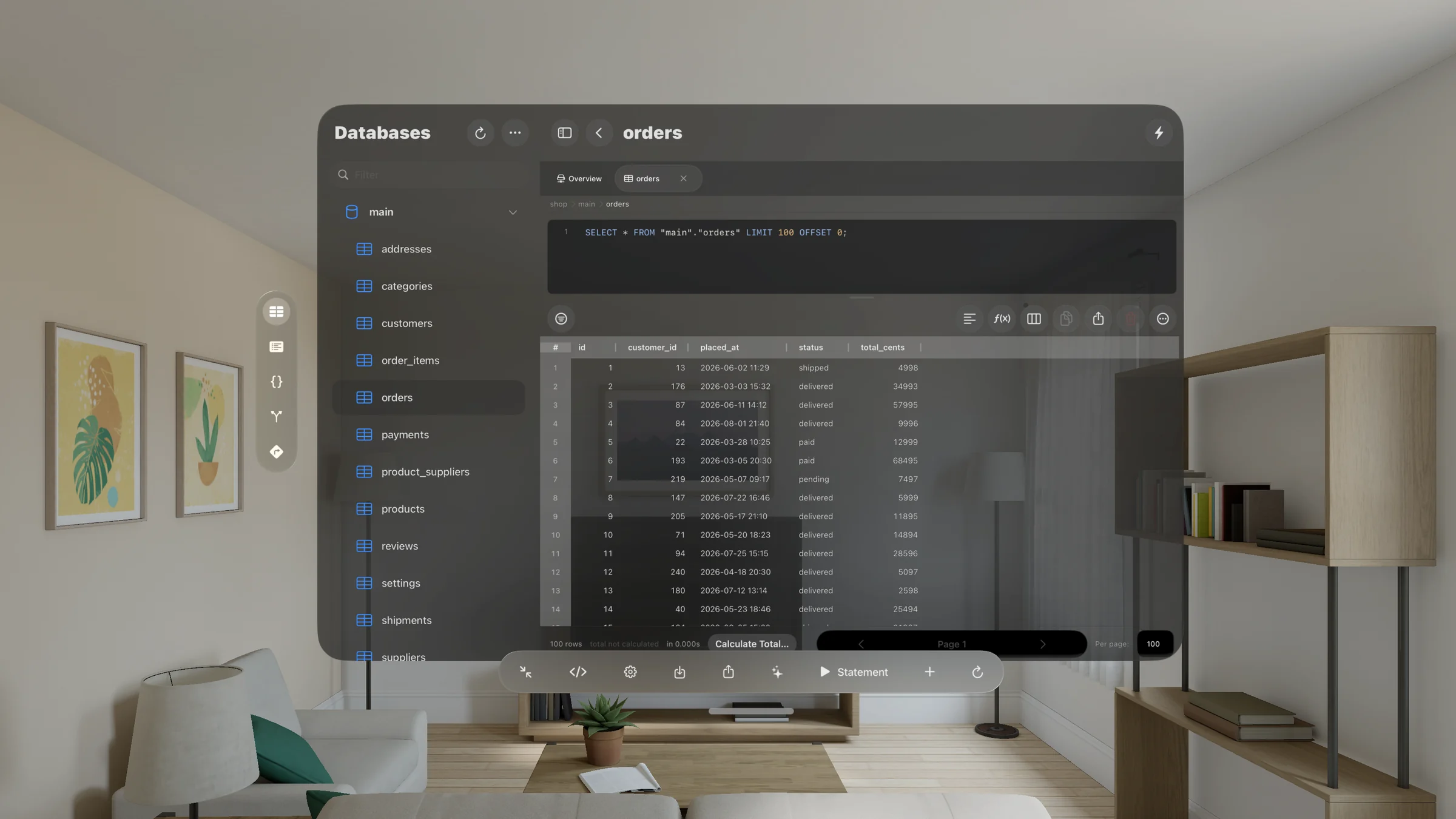
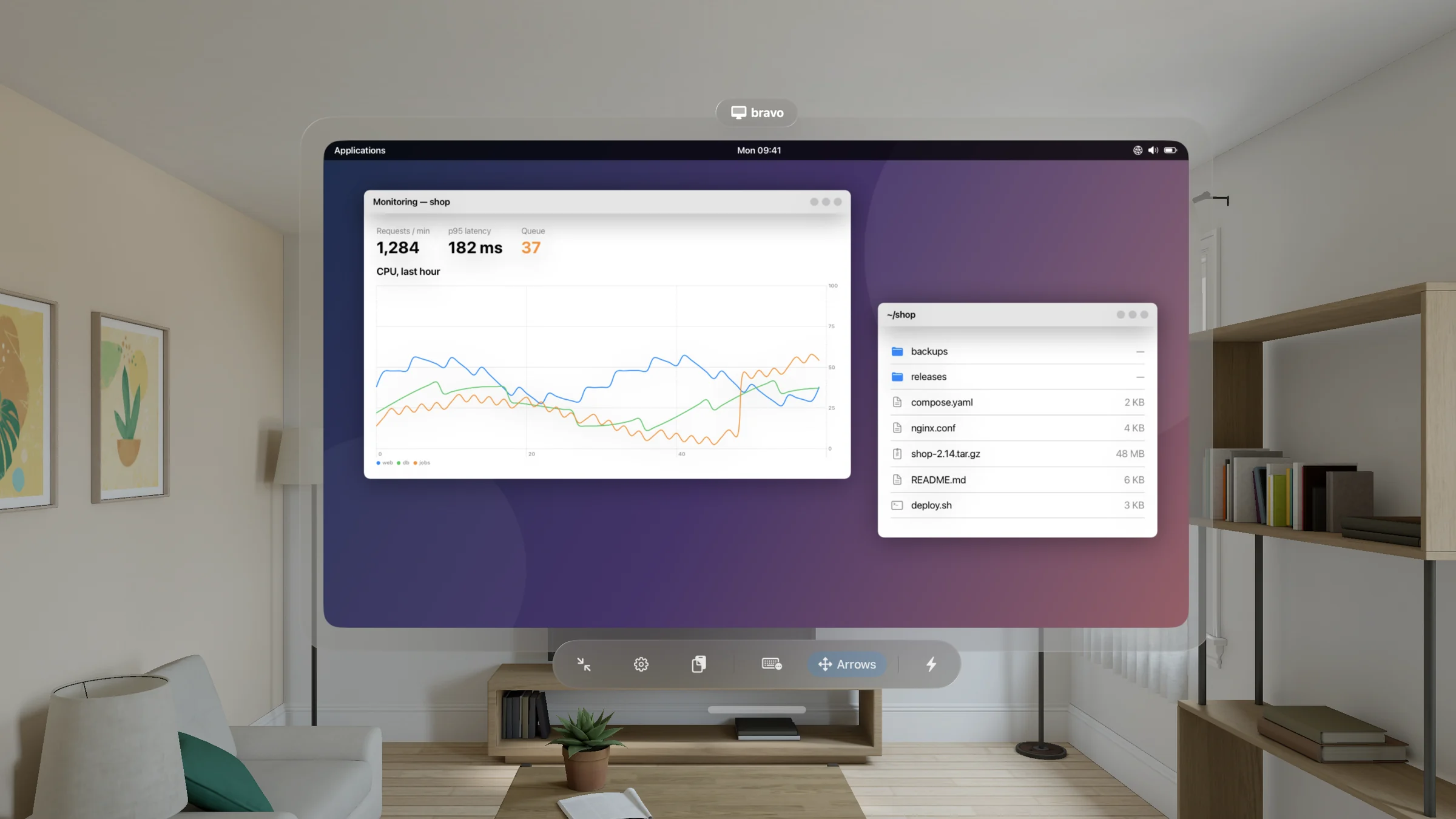
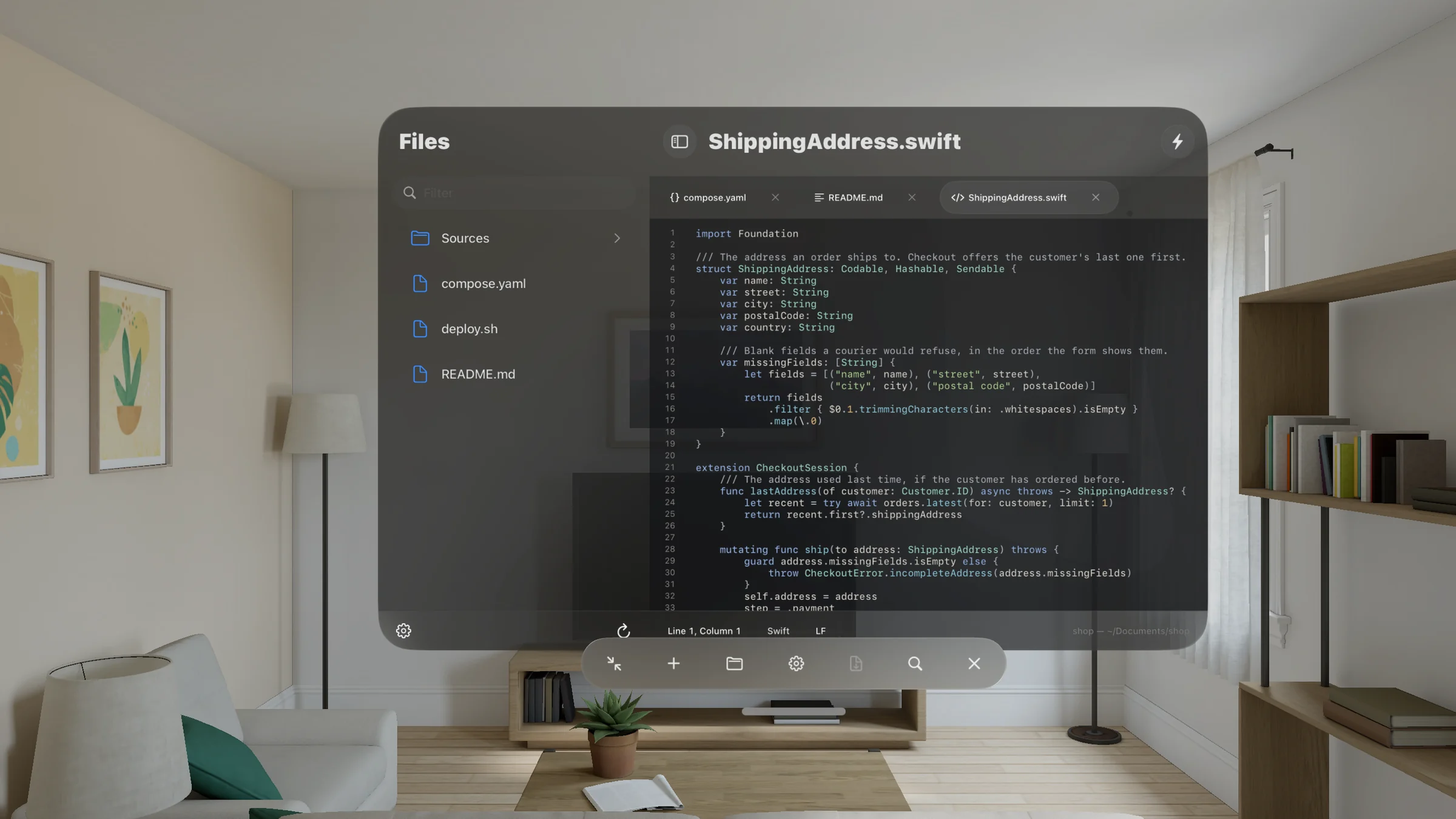
It started as an SSH client for Apple Vision Pro, and the headset still leads the design. Each session is a normal window you place around you. A server's terminal, its database and its desktop can sit side by side in the room. A window you aren't using can shrink into a small glass orb, with its session live inside it, until you pinch it back.
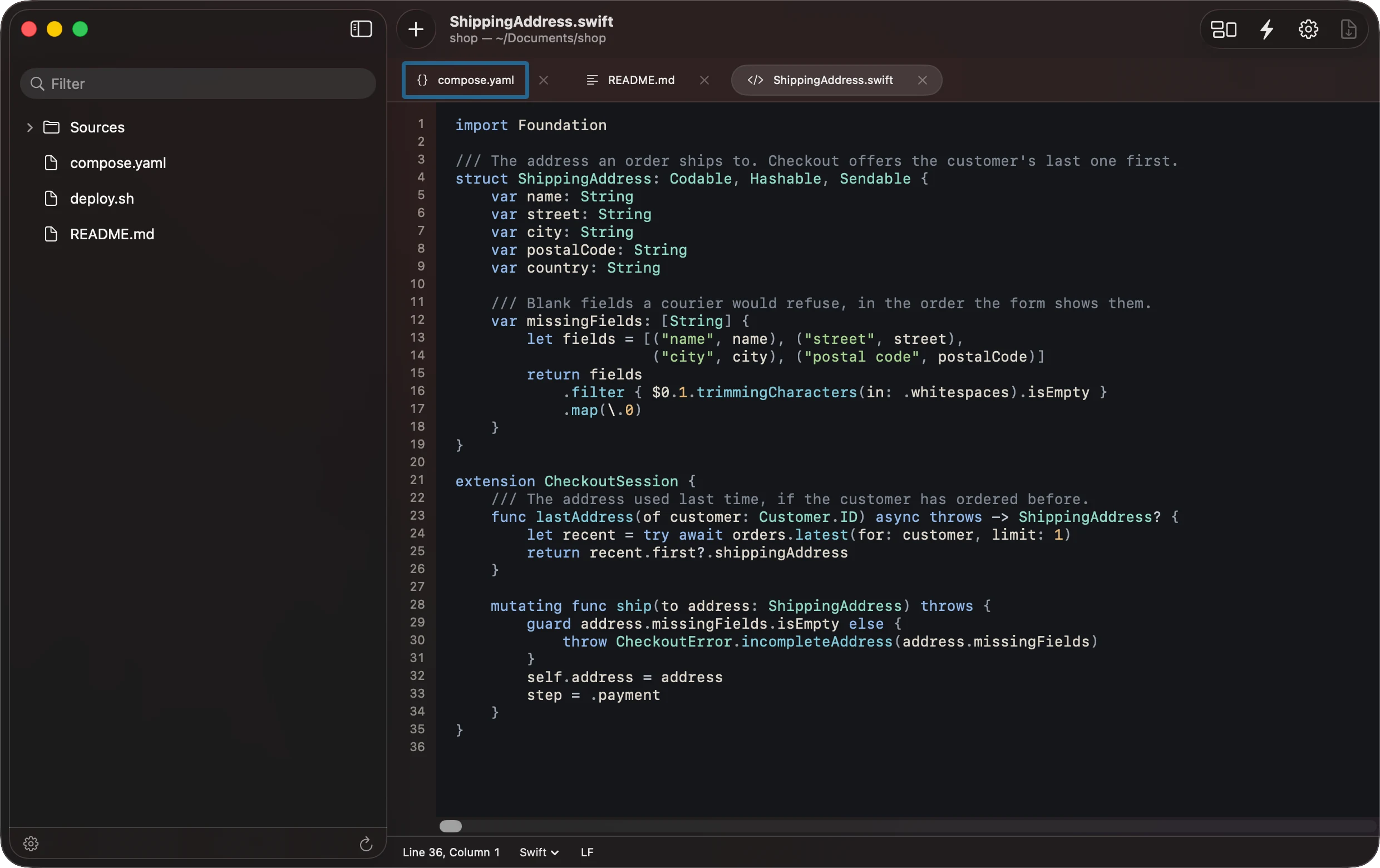
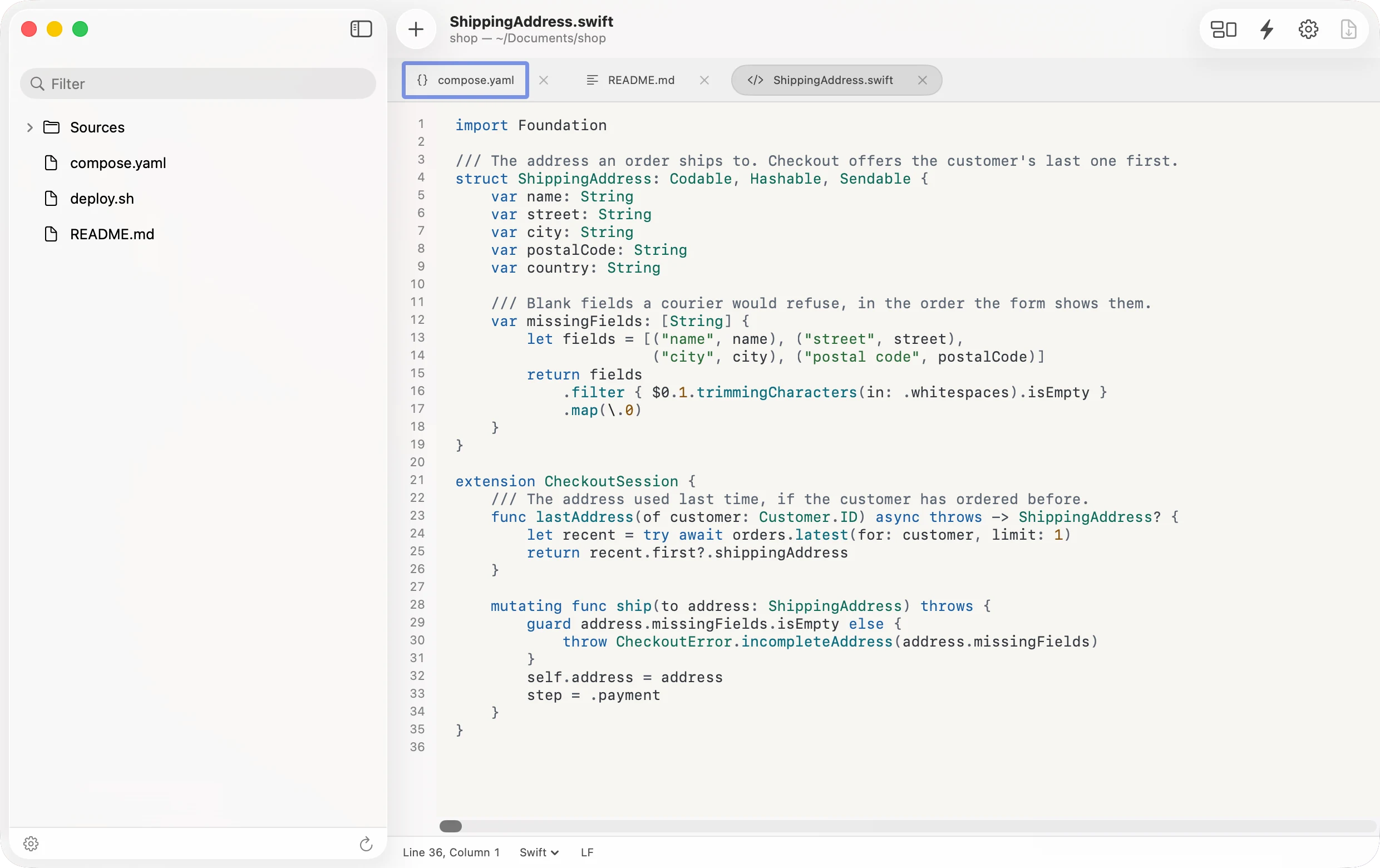
Every window is glass. Opacity sets how much of the theme's colour is painted, Glass how much the room is frosted behind it; the pictures here use 78% and 50%.
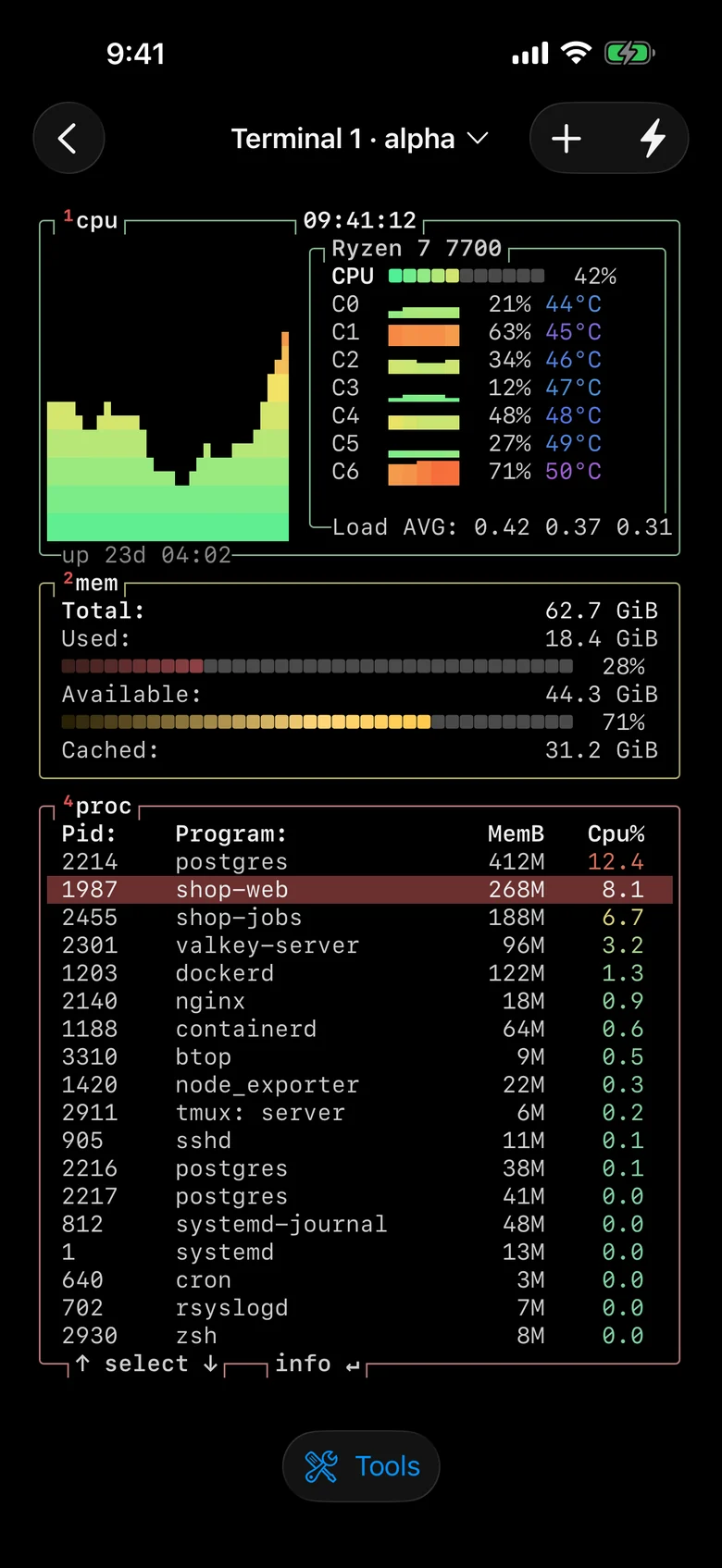
The Mac, iPad and iPhone apps are the same app, adapted to each device. The Mac adds a local shell and menus. The iPhone gives each session the whole screen.
An honest note on testing. The current build is used every day on a Mac and an iPhone, and the headset runs it too: on 2026-10-20 the Mac and iPhone had 0.4.494, the headset 0.4.481. Not every newer change has been checked on the headset yet.
Pick up where you left off
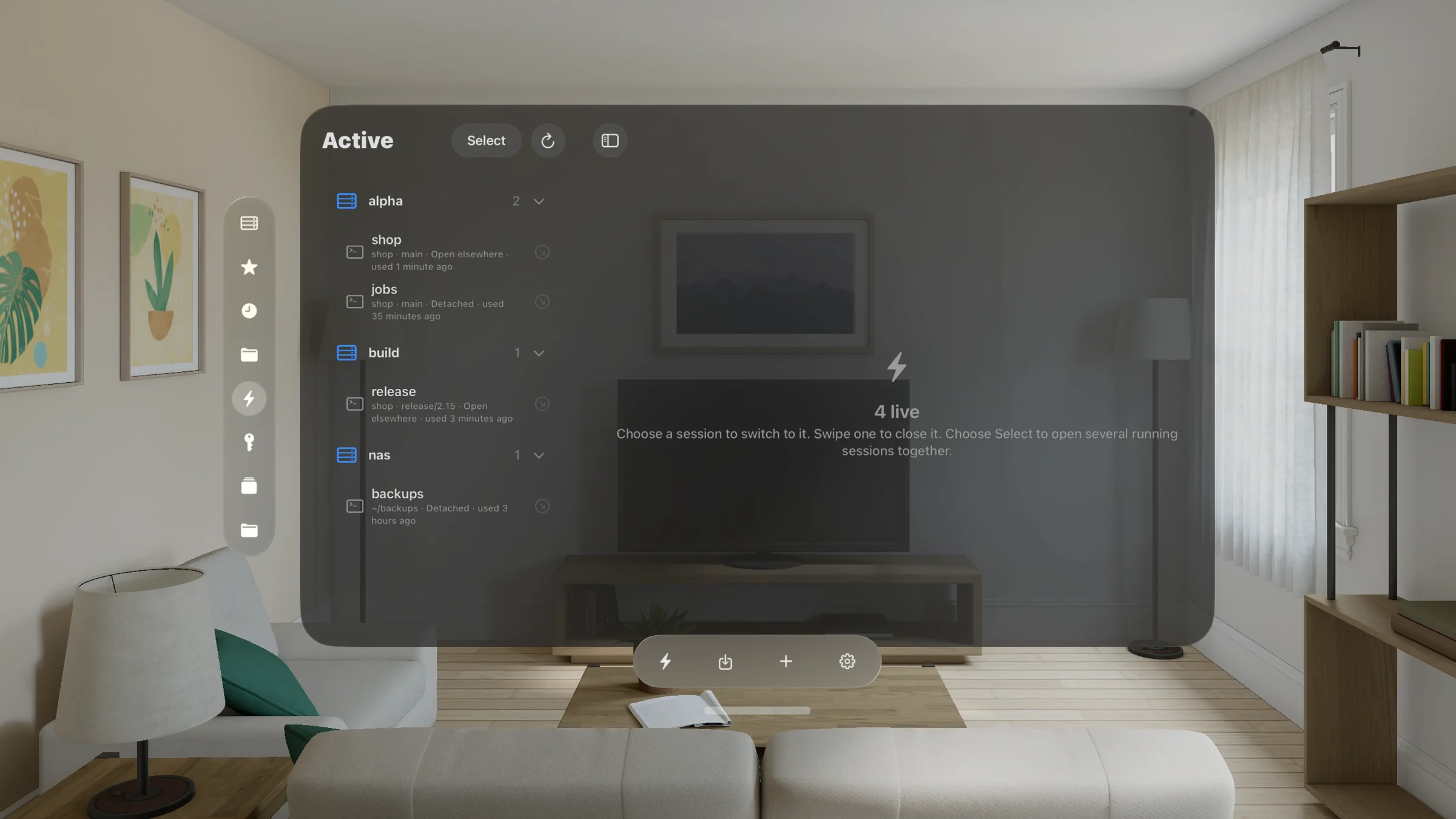
Turn on Keep Sessions Running with tmux for a machine, and each terminal you open there runs in its own tmux session on the machine. A dropped connection, a closed window or a quit app leaves the work running. The machine needs tmux.
On the Mac
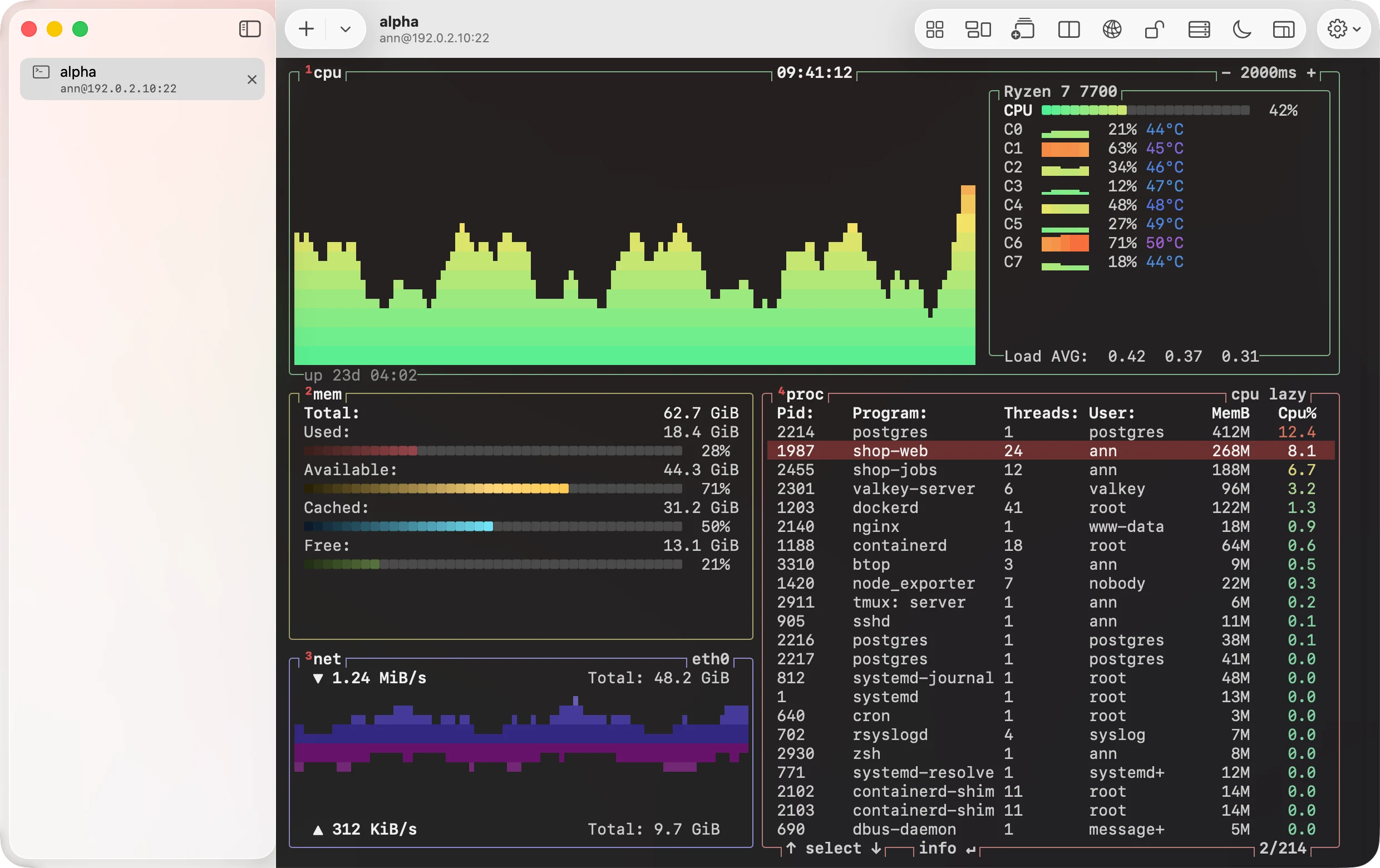
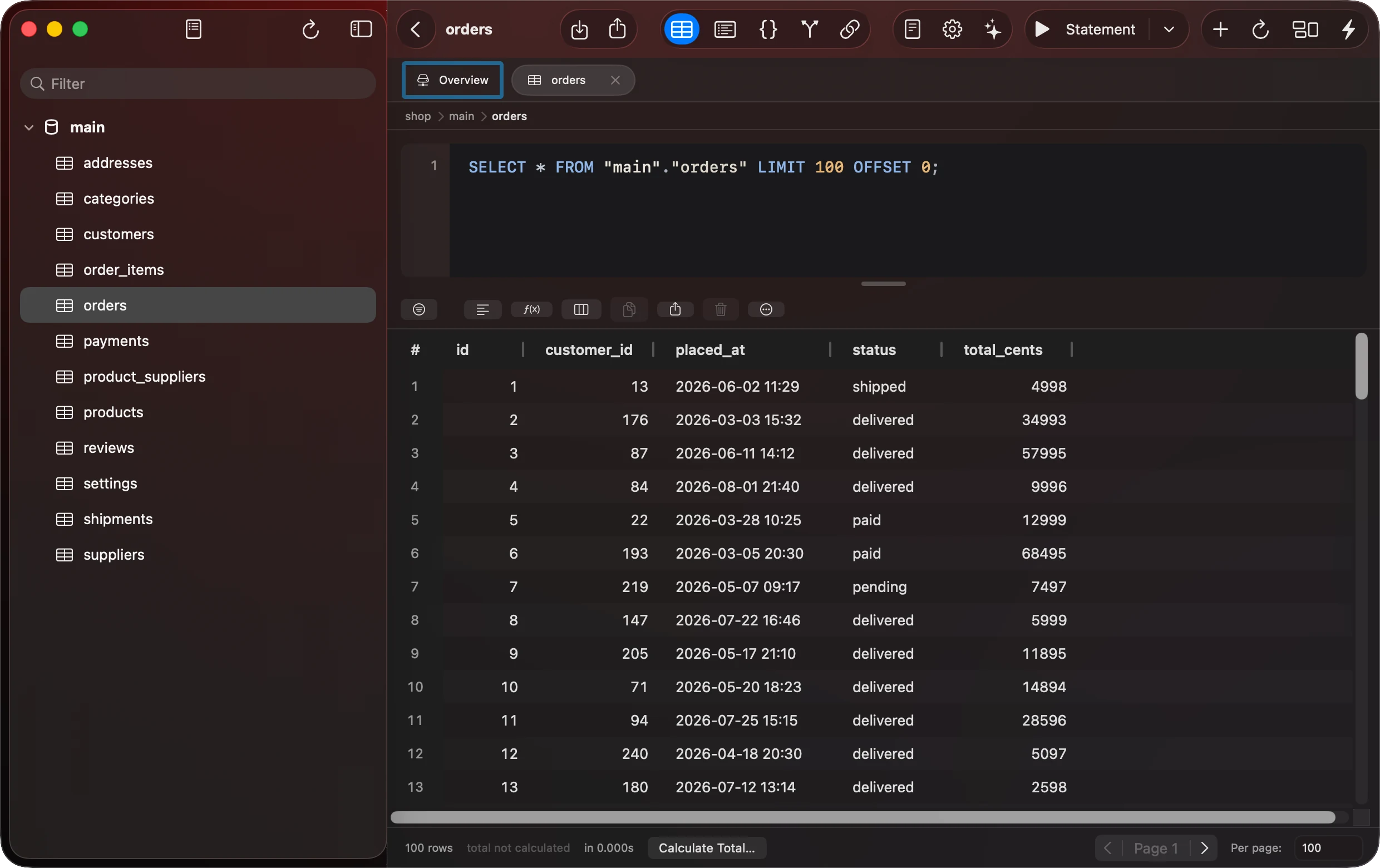
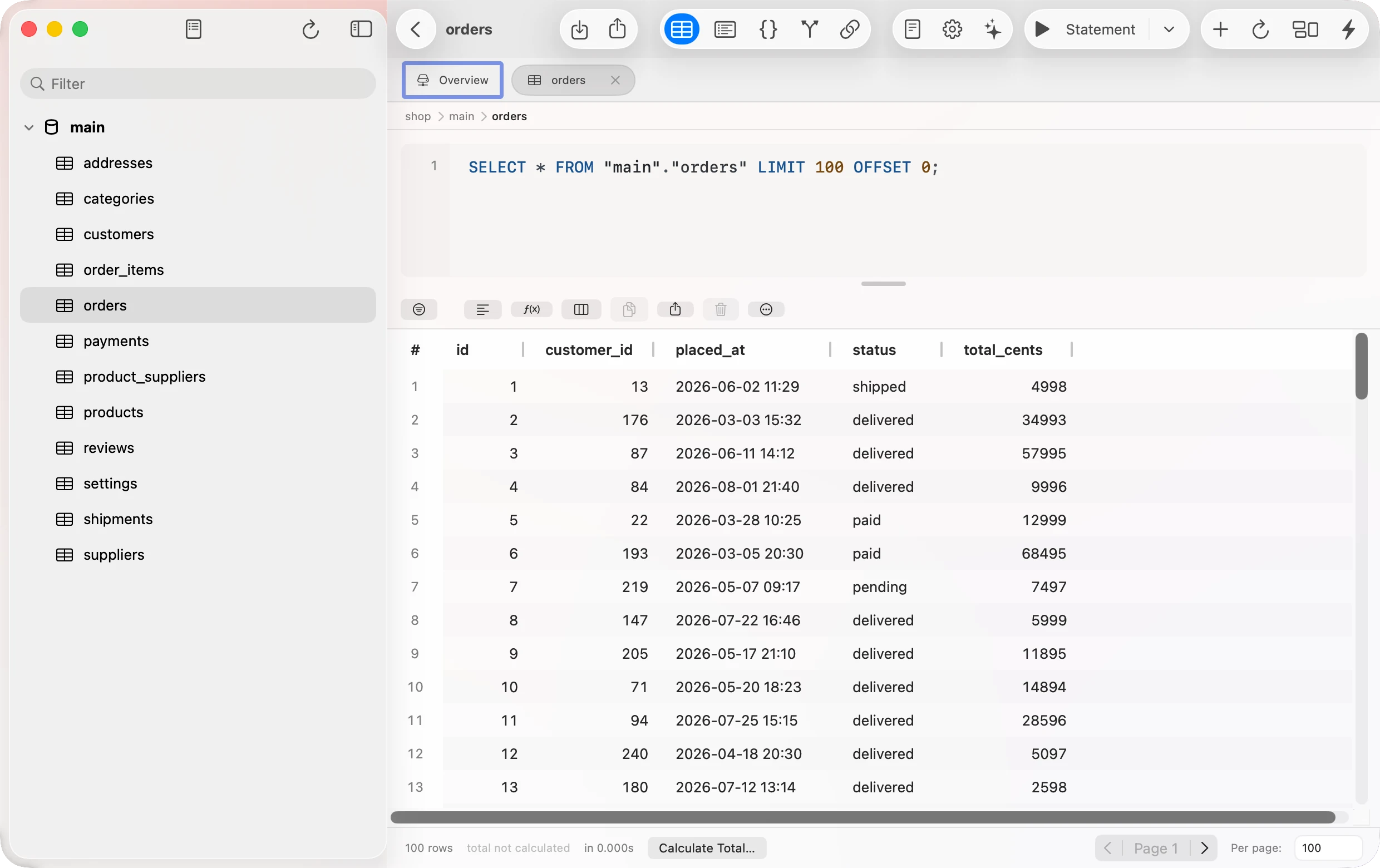
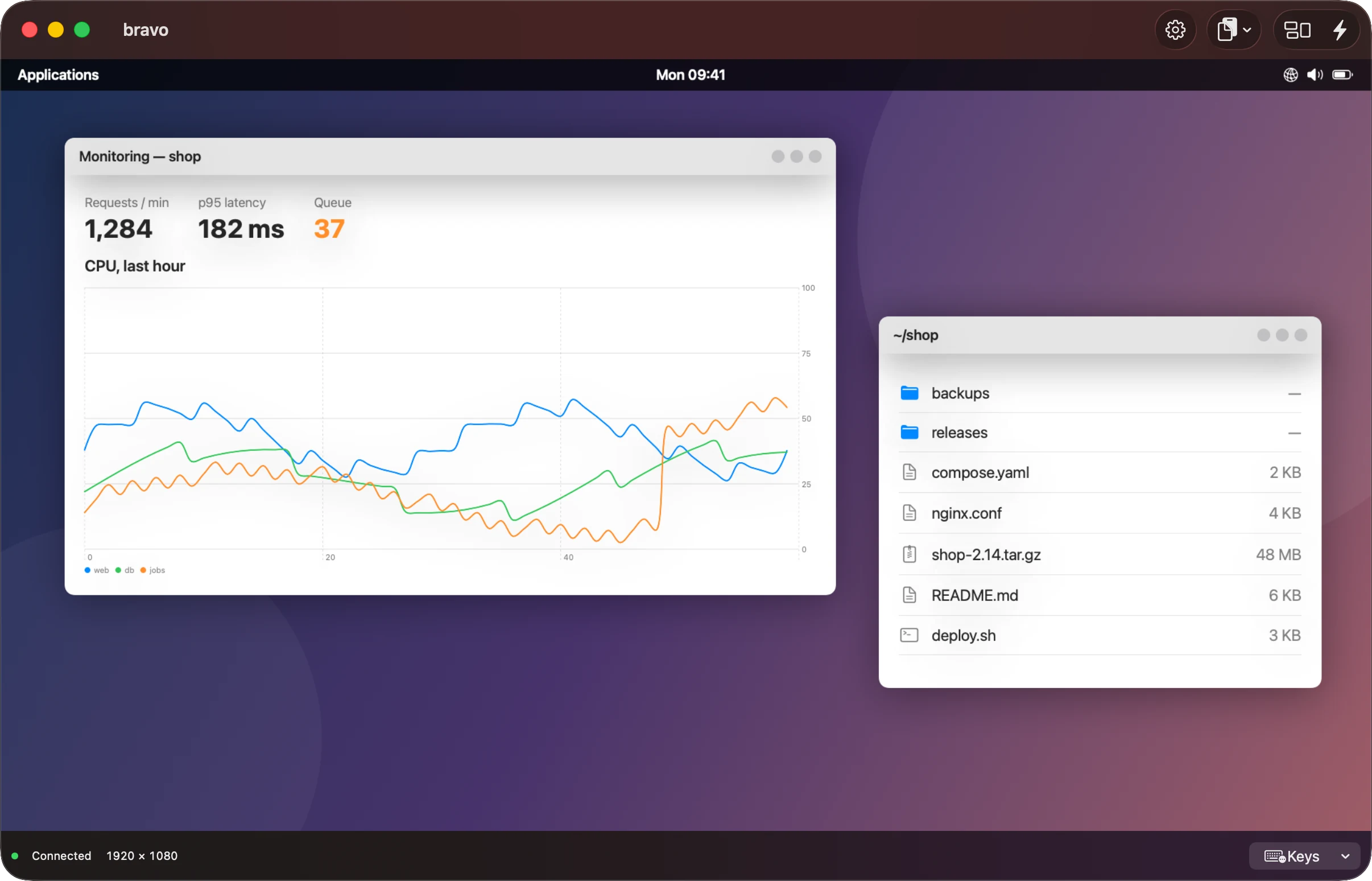
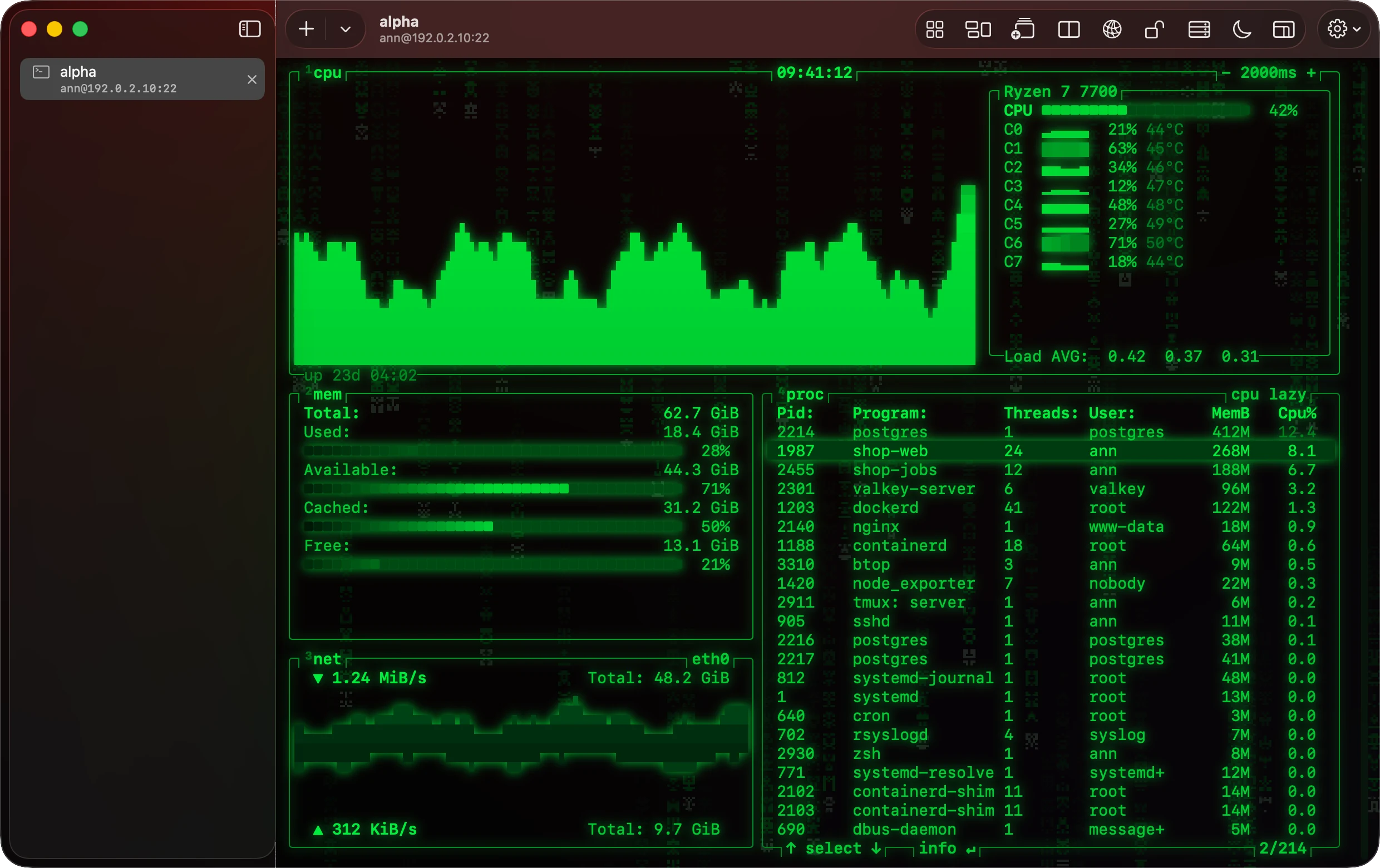
A terminal worth looking at
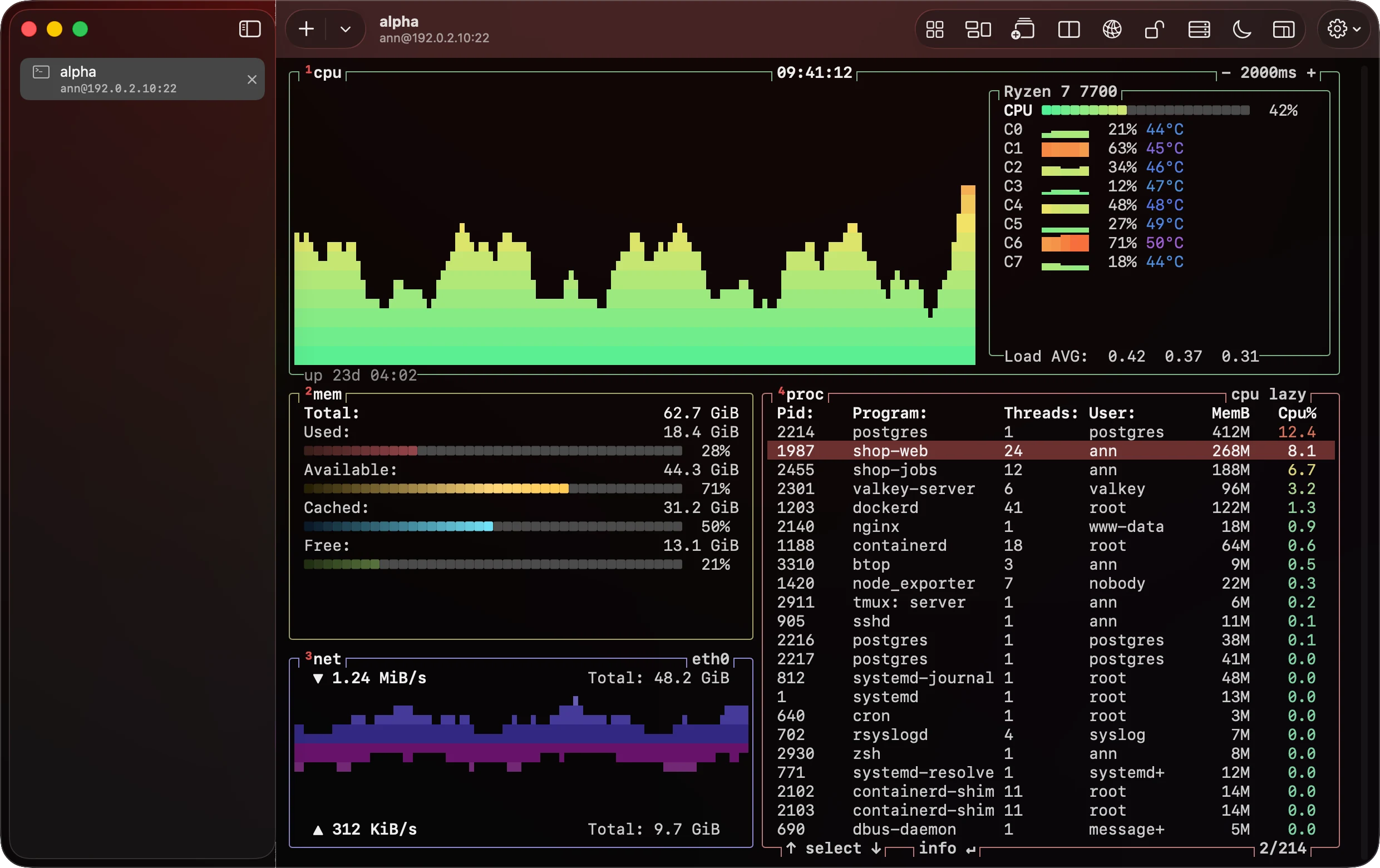
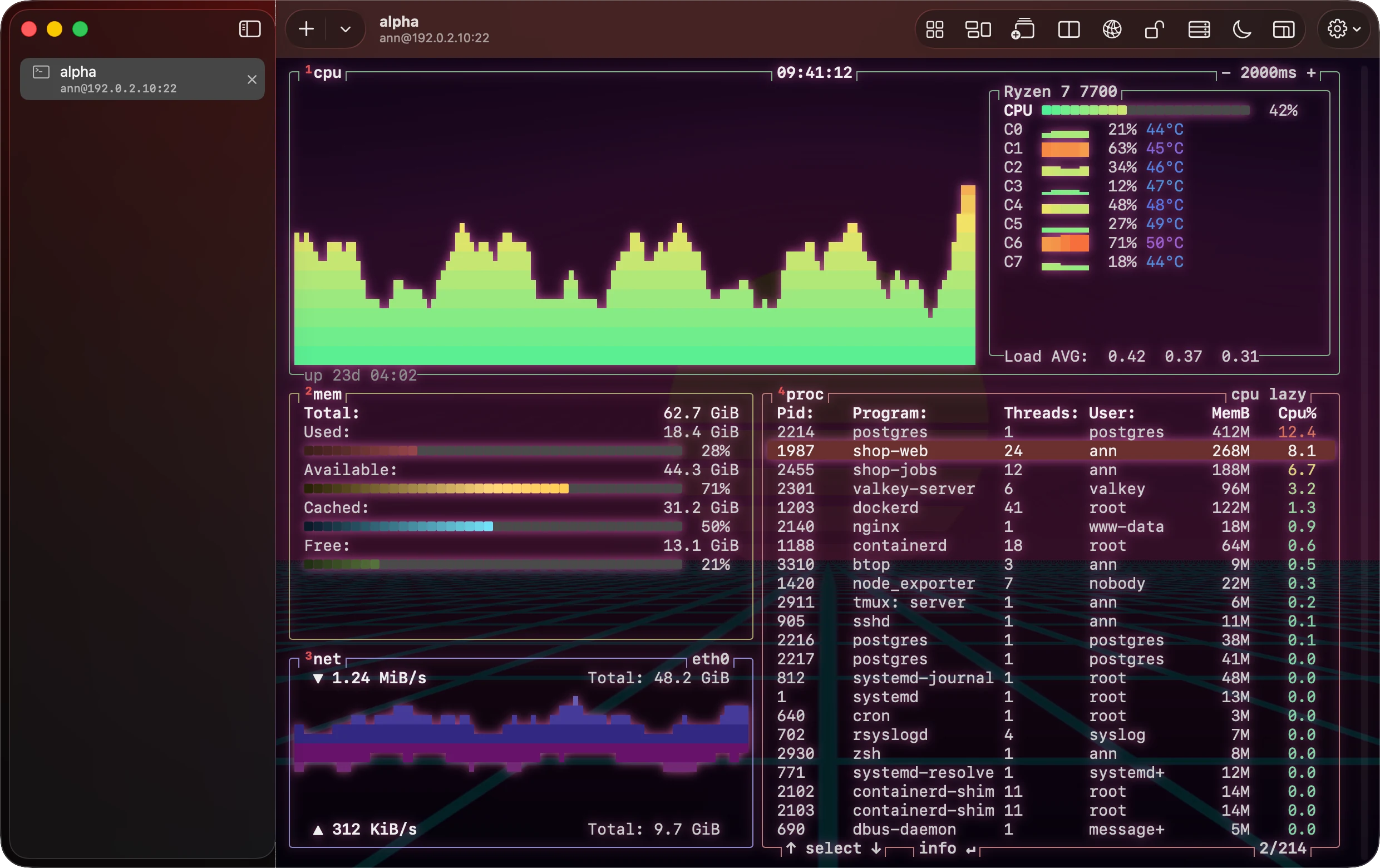
You look at terminals all day, so each window can have a look of its own: a picture behind the text, Digital Rain that quickens while the terminal prints, a Synthwave horizon, green or amber phosphor, a glow. The text comes first: bright patches are held down so it stays readable, and the motion stops under Reduce Motion and Low Power Mode. On the Mac, iPad and Vision Pro.
What it does
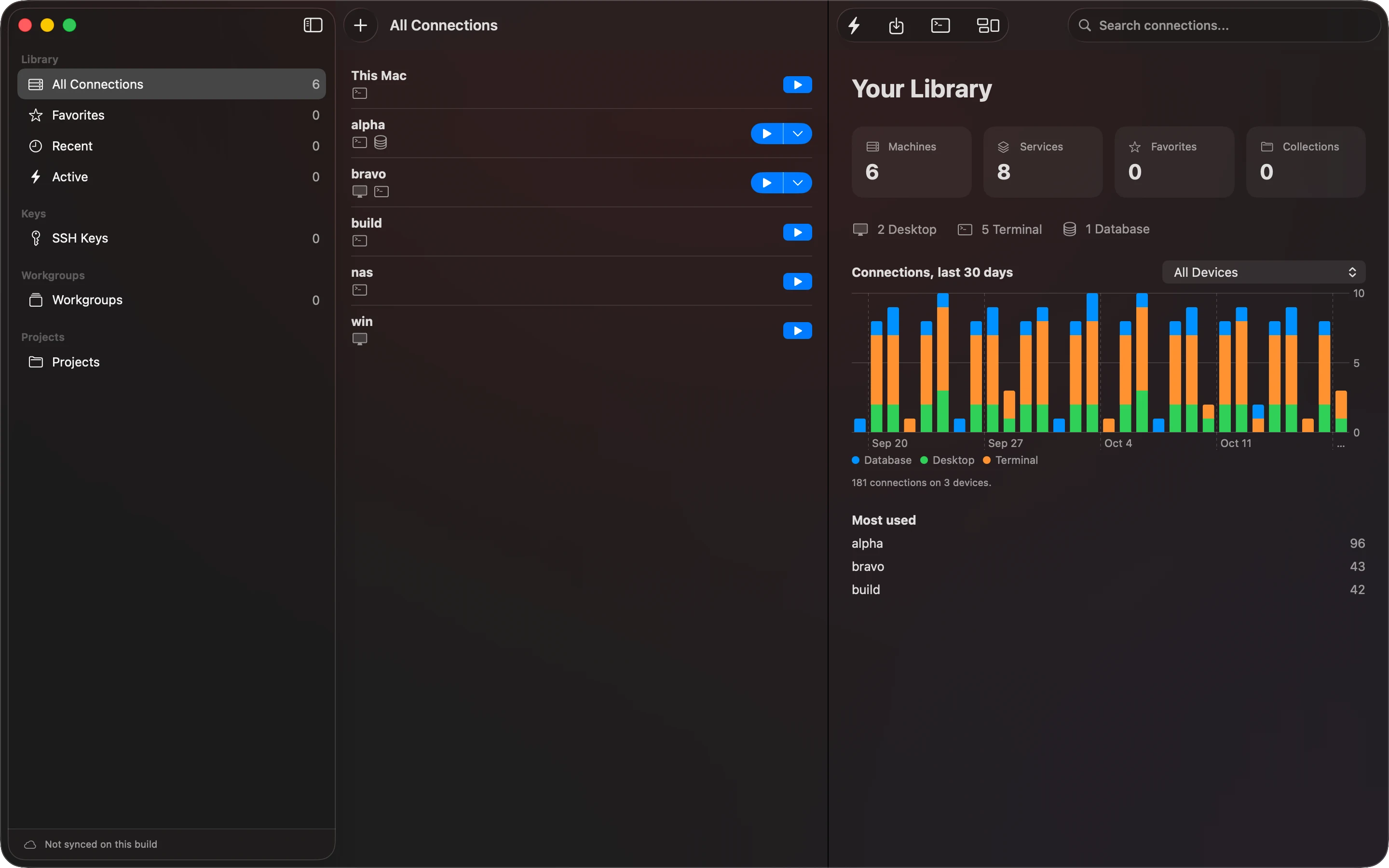
Four tools share one library. You add a machine once, with its address. Then you add the ways in: a terminal, a database, a desktop. The address, keys and trust you set up once are used by every tool that needs them.
Terminal
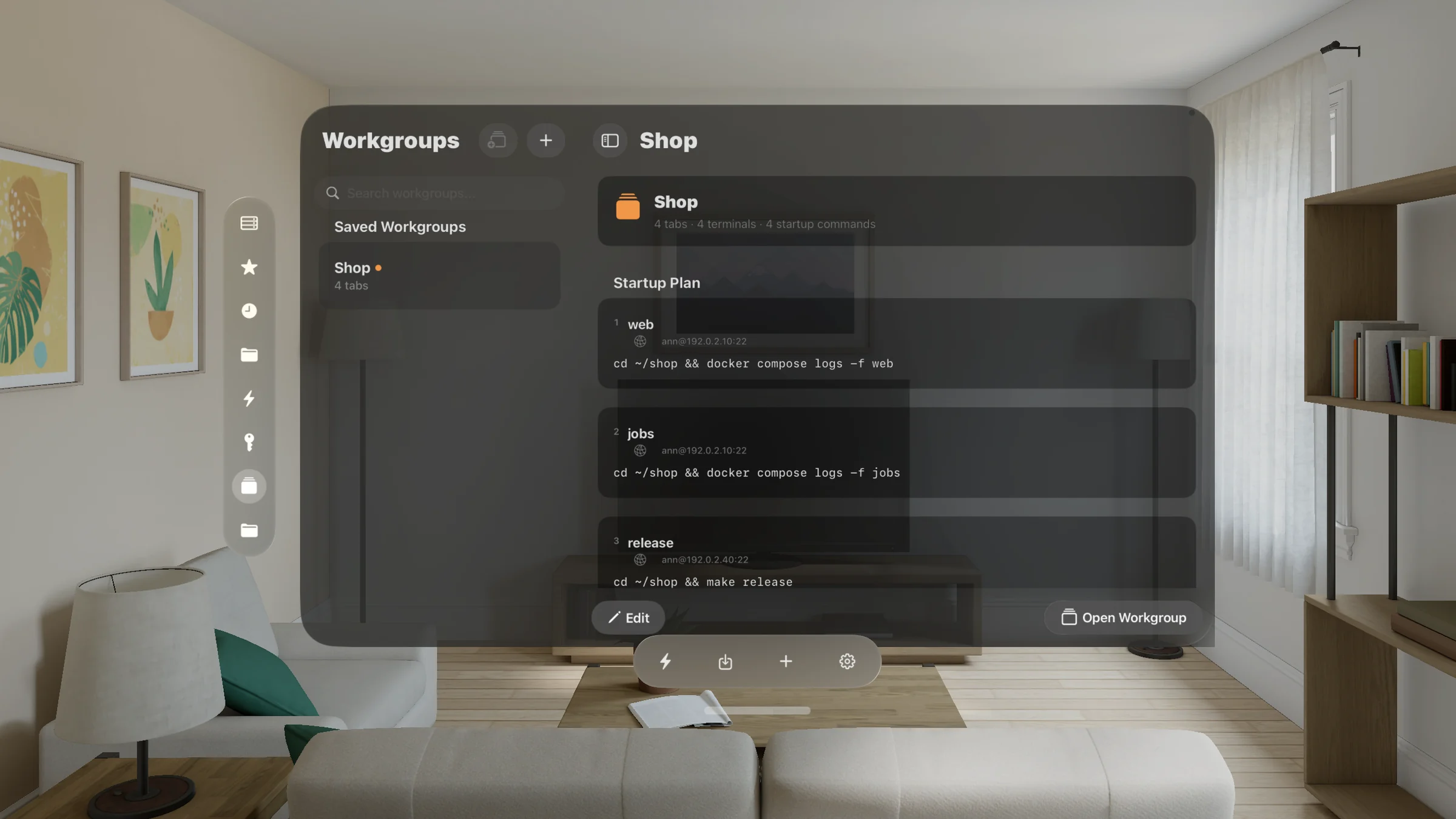
SSH with host-key pinning, password and key sign-in, tabs, workgroups, port forwarding and an SFTP file browser. Sessions kept in tmux that you pick up on any device. A local shell on the Mac.
Databases
MySQL, PostgreSQL and SQLite. Browse, filter and edit rows, follow foreign keys, write and explain queries. Reach a server directly with TLS, or through the machine's own SSH connection.
Remote desktops
RDP and VNC. The remote resolution can follow your window. Audio and a shared clipboard, with formatting and images over RDP, when you turn them on.
Editor
Files on this device or on a server. Projects with a file tree, highlighting for fifteen languages, previews for Markdown, HTML, SVG and CSV, and viewers for pictures, PDFs, video, audio and 3D models.
The library
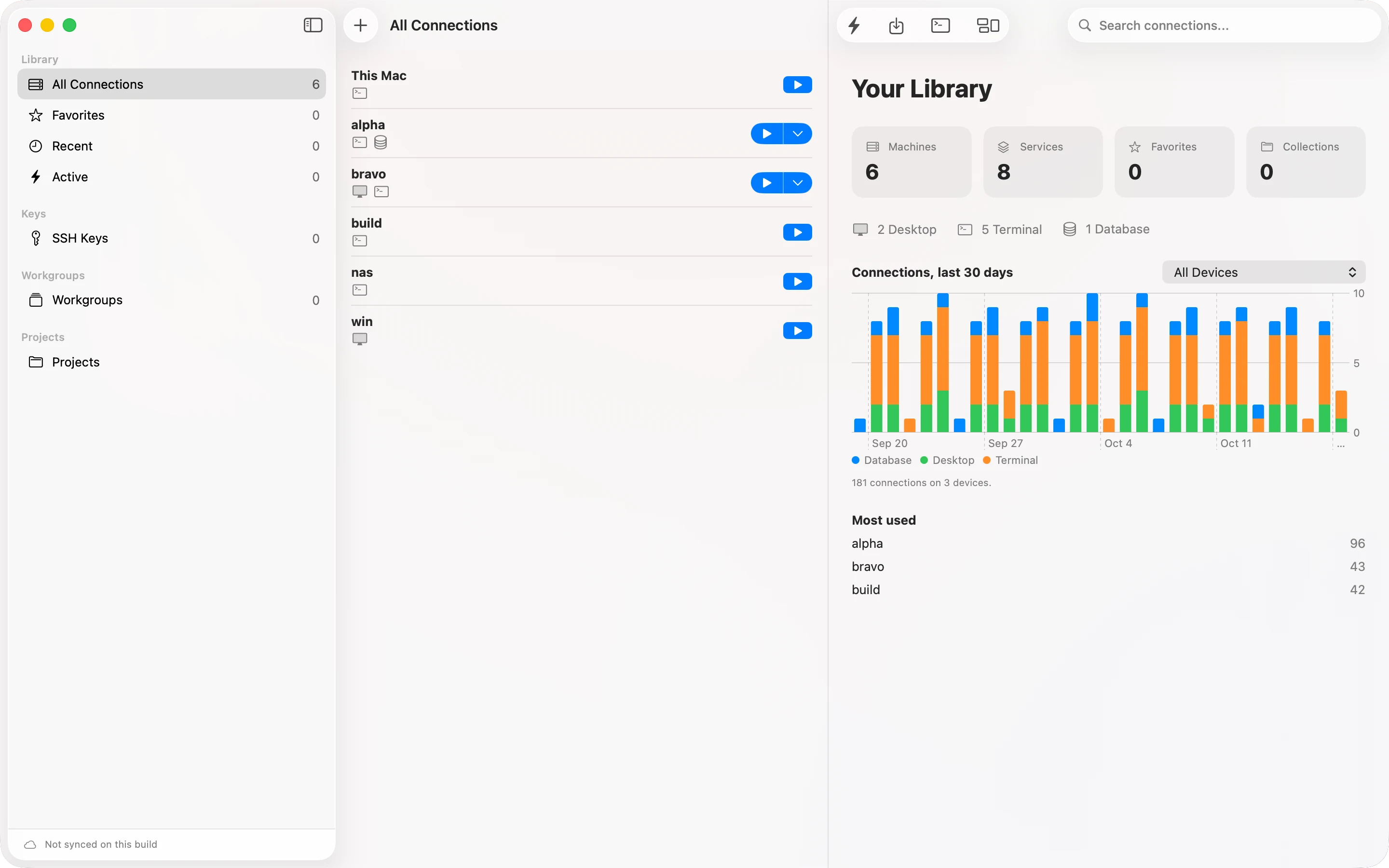
One list of hosts, with favorites, collections and search. It syncs through iCloud. Credentials sync through iCloud Keychain. Your Library shows the time you spend on each machine, across your devices. Widgets show your machines and what's open, and Show All Windows shows every open session as a live picture.
Why one app
A machine usually offers several ways in. The common setup is one app per protocol. Each app keeps its own list of the same machines and its own settings. Glass Power Tools keeps one list instead. Whether that fits how you work is for you to judge.
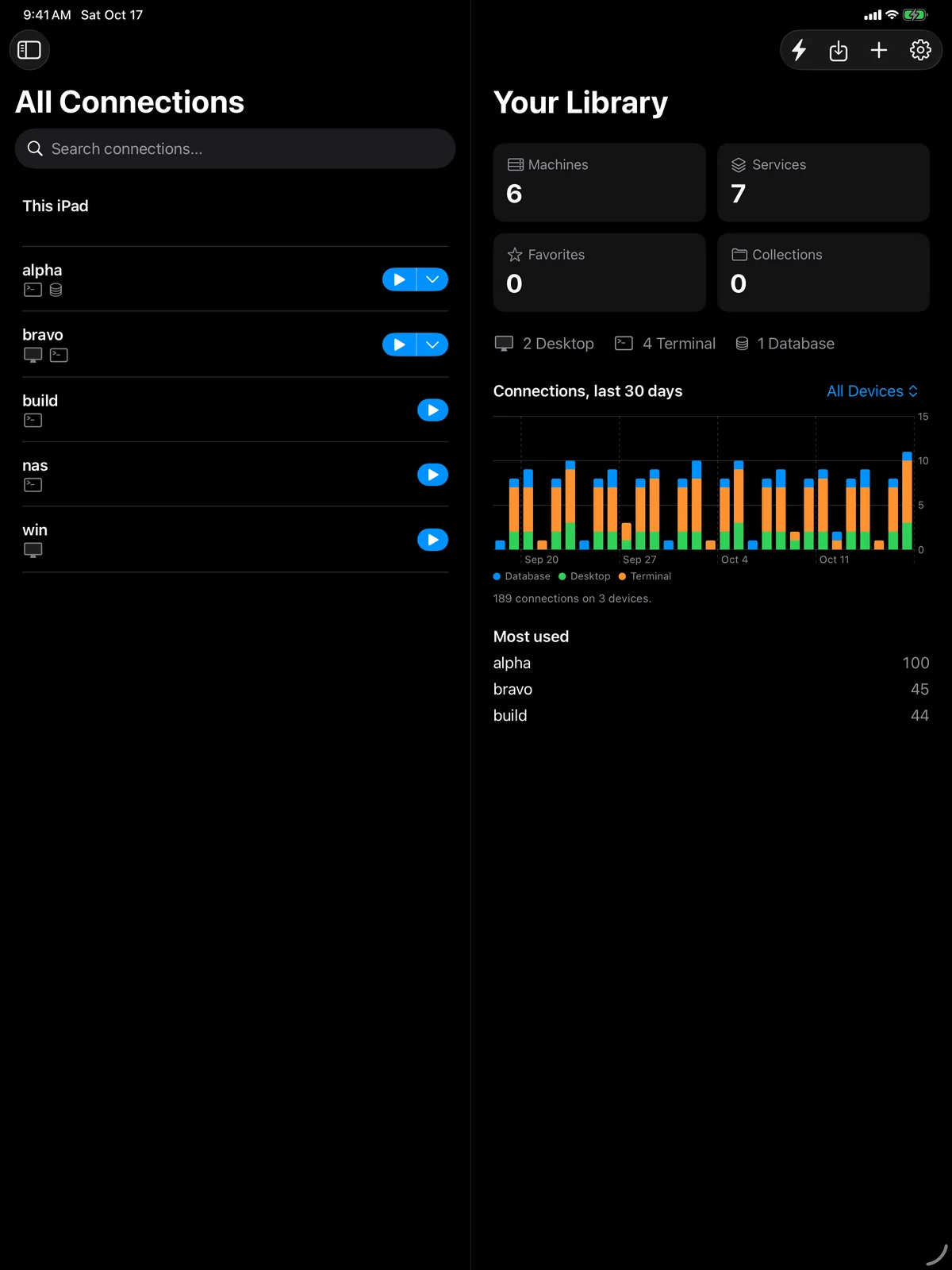
iPad and iPhone
The same library and the same machines. The iPhone gives each session the whole screen.
What leaves your devices
The app connects to three kinds of place, and no others. The Mac app also checks its update feed on this site, and asks on its second launch whether to do that automatically.
- The servers you add. Only when you connect to them.
- iCloud. Your host library syncs through your private iCloud database. Passwords, keys and host-key pins sync through iCloud Keychain, except a password you protect with Face ID or Touch ID, which stays on its device. Keys made in the Secure Enclave never leave the device they were made on.
- Tailscale's API, only if you connect a Tailscale account to find your devices.
There are no analytics and no telemetry. Secrets live in the Keychain, apart from your settings. The database assistant runs on your device through Apple Intelligence, and the help lists exactly what it is given.
How credentials and connections are protected, and what is not →
What it asks of you
On the Mac
Download 0.4.494. It is signed with a Developer ID, notarized by Apple, and updates itself through Sparkle. It is not in the Mac App Store, because a terminal cannot work inside App Sandbox: it has to start your shell and reach your files, tools and SSH agent. It needs macOS 26 on a Mac with Apple silicon.
It is early. It is used every day, and what has been checked, and what has not, is written down. Expect rough edges, and report what you find.
iPhone, iPad and Vision Pro
They are in TestFlight for internal testing, and will come to the App Store as 1.0, with the Mac at 1.0 too. They need iOS and iPadOS 26, or visionOS 26.
You can also build any of them from source. You need a Mac with Apple silicon and Xcode 27, and you sign it under your own Apple Developer team.
Leaving
You should be able to stop using a tool without losing what you put into it. Here is what that looks like.
- The code is free software under the GPLv3. You can read it, change it and build it yourself, and any copy someone shares stays under the same licence.
- It speaks standard protocols: SSH, SFTP, the MySQL and PostgreSQL protocols, RDP and VNC. Your servers need nothing from this app. Any other client can reach them the same way.
- Imported SSH keys are ordinary OpenSSH keys, the same format other SSH clients use.
- A SQLite file is opened as a private copy. Your original is never changed.
- Your editor files stay where they are, on your device or your server. Removing a project from the list does not touch its folder.
What you cannot take with you yet: the list of hosts and services itself has no export. If you leave, you enter it again in the next app.
And one cost that is permanent: a key made in the Secure Enclave cannot be exported. That is what makes it safe. If you leave, add a different key to the servers that use it first.
Who made it
One developer, Michael Sitarzewski, whose name is on the licence. Nothing is sold: the app is free. The app's About page has a Sponsor link.
If people use it, the author gains standing from it. That is a real interest, so it is written down here.
Check it yourself
You should not have to take this page's word for any of it.
- The source. It is public at github.com/msitarzewski/GlassPowerTools, under the GPLv3.
- What is verified, and how. The repository's
memory-bank/progress.mdsays what was tested on real hardware and servers, and what was not. - Third-party code.
THIRD-PARTY-NOTICES.mdlists every component, its licence and the exact revision. Every local change to carried code is written down beside it. - The help. It was written from the app's code, including what the app does not support. Read the help.
- Security. How it protects credentials, what it does not protect, and how to report a problem.
That is what it is, what it is not yet, and how to check. Whether one library of machines suits the way you work is yours to decide.